Posts

How to Create a flow that runs only once a week using Power Automate

Image
Create a flow that runs only once a week using Power Automate Under the recurrence we can set up the frequency of our flow, in the below flow will demonstrate how we can create a flow that runs only once a week at a specific day and time. We can customize the recurrence based on our BAU requirements.  Follow below Steps - 1. Sign in to MS Flows/Power Automate. 2. Click on "My Flows" - New Flow and choose "Scheduled Cloud Flow".    3. In the Recurrence set up the properties as below it will trigger the only once a week at the scheduled time.     
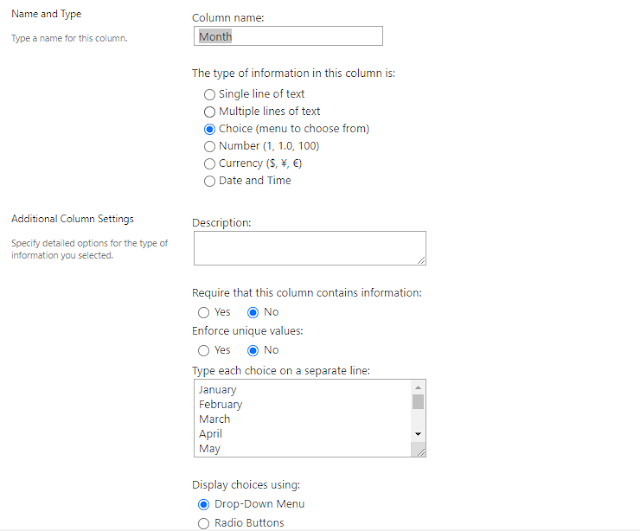
How to get Choice field values in SharePoint using REST api

Image
Get Choice field values in SharePoint using REST api To get values of a choice type column in SharePoint list refer the below method which will give you the all choice type column's values. Just write your list and column name in the below method and you will get your response in the console. function getChoices(){ $.ajax({         url: _spPageContextInfo.webAbsoluteUrl +"_api/web/lists/GetByTitle('List Name')/fields?$filter=EntityPropertyName eq 'Choice Field Name'",         type: "GET",         headers: {             "accept": "application/json;odata=verbose",         },         success: function (data) {             console.log(data.d.results[0].Choices.results);         },         error: function (error) {             alert(JSON.stringify(error)); ...

How to Send email reminders based on column value using Power Automate

Image
Sending email reminders based on column value in SharePoint List using Power Automate The above stated flow will trigger a reminder notification based on column value in SharePoint List. We would be using a Scheduled Cloud Flow for the same. Please refer below steps. Follow below Steps - 1. Sign in to MS Flows/Power Automate. 2. Click on "My Flows" - New Flow and choose "Scheduled Cloud Flow". 3. Create a Scheduled flow will repeat itself based on the frequency you will specify and send emails. 4. Get Items from the SharePoint List based on the column value. 5. Loop through each item and trigger send email. I believe above stated steps will help you to implement them in your BAU requirements.

How to Customize exported excel's cell background color in Datatables

Image
Customize exported excel's cell background color in Datatables In this post i will walk you through how we can customize exported excel's cell background color in datatables. For this we need make changes in the buttons.html5.js file. you may refer below links for more info.  excelHtml5  and  how can i change the background color Follow below steps and make changes in buttons.html5.js file 1. Create your own fills.  '<fills count="11">'+ '<fill>'+ '<patternFill patternType="none" />'+ '</fill>'+ '<fill>'+ // Excel appears to use this as a dotted background regardless of values but '<patternFill patternType="none" />'+ // to be valid to the schema, use a patternFill '</fill>'+ '<fill>'+ '<patternFill patternType="solid">'+ '<fgColor rgb="FFD9D9D9" /...

How to stop a Power Automate flow

Image
Stop a Power Automate Flow If you ever created a flow then you might have to either delete it as it might not in use, but here you can pause a Power Automate Flow using the below steps. You can turn off or turn on it anytime. Please follow below steps:- 1. Sign in to MS Flows. 2. Click on "My Flows". 3. Click on the flow you want to stop. 4. Click on "Turn off" button to stop the flow. I hope the above stated steps may help you :)

How to create Approval flow in Power Automate

Image
Approval flow in MS Power Automate I have create a simple flow on Power Automate if Column values equals "Approved" then trigger an email to the desired user else trigger an email to the created by or any other user. Please follow below steps:- 1. Sign in to MS Flows. 2. Click on "My Flows". 3. Select "Create From Blank +". 4. find below steps in the given screenshots.   (i) Add an action - Search for "SharePoint" in the connectors and actions.   (ii) Search for desired actions as show below. Hope this kind of simple approval flow will help you implementing in your projects or BAU.

How to generate HTML mailto links

Image
Generating HTML mailto links What is mailto link Mailto link is a type of HTML link that activates the default mail client on the computer for sending an e-mail. The web browser requires a default e-mail client software installed on his computer in order to activate the e-mail client. If you have Microsoft Outlook, for example as your default mail client, pressing a mailto link will open a new mail window.  How to create mailto link in HTML Mail to email address with cc, bcc, subject and body <a href="mailto:rajatvedi007@gmail.com?cc=vedi.rajat@gmail.com&bcc=test@testing.com &subject=The%20subject%20of%20the%20email &body=The%20body%20of%20the%20email"> Send mail with cc, bcc, subject and body</a> Important Note - How to add spaces in the mail's subject or body You can add spaces by writing %20 in the text of the subject or body. <a href="mailto:test@gmail.com?subject=The%20subject&body=This%20is%20a%20message%20body">Send mail...