Posts

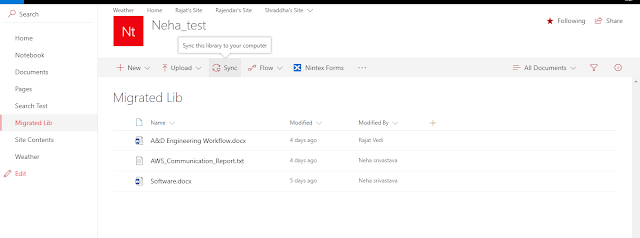
Sync SharePoint online document library to your system
Image
How to Sync SharePoint online document library to your system Step 1: Go to the library you want to sync with your PC and click on Sync button. Step 2: Now Click on Open Microsoft OneDrive. Step 3:  Click on Start Sync botton to sync your library. Step 4:  Here is your synced library. 

Retrieve Data from SharePoint List using REST api

Retrieve Data from SharePoint List using REST api jQuery <script type="text/javascript" src="https://ajax.aspnetcdn.com/ajax/jQuery/jquery-1.12.4.min.js"></script>  <script type="text/javascript"> var listName = "ListB";     // This code runs when the DOM is ready and creates a context object which is needed to use the SharePoint object model     $(document).ready(function () {         GetEmployeeDetails();     });     function GetEmployeeDetails() {         $.ajax({             url: _spPageContextInfo.siteAbsoluteUrl + "/_api/web/lists/GetByTitle('" + listName + "')/items?$Select=Title,EmployeeName,Salary,Dept/Title,Dept/Code,Dept/pqol&$expand=Dept",             type: "GET",             headers: { "Accept": "application/json;odata=verbose" }, // return data format   ...

Insert data to SharePoint List using JSOM

Insert data to SharePoint List using JSOM   <script type="text/javascript" src="https://ajax.googleapis.com/ajax/libs/jquery/1.12.4/jquery.min.js"></script>  <script type="text/javascript"> $(document).ready(function () {              $("#btnSubmit").click(function () {             createItemsToList();         });     });     function createItemsToList() {               //List Name         var listTitle = "EmployeeList";         //Get the current client context            context = SP.ClientContext.get_current();         var List = context.get_web().get_lists().getByTitle(listTitle);         //Create a new record         var listItemCreationInformation = new SP.ListItem...

Enable Rating to SharePoint Lists or Libraries

Image
How to enable Rating to a list or library in SharePoint Go to list settings à Under general settings click Rating settings à Enable rating settings.

Modal pop ups in SharePoint

Image
Modal pop ups in SharePoint There may be requirement to implement modal pop ups in SharePoint, to use them we need to use below code : <script type="text/javascript" src="https://ajax.aspnetcdn.com/ajax/jQuery/jquery-1.12.4.min.js"></script> <script type="text/javascript">     $(document).ready(function() {         $("#btnShowPopup").click(function(){             ModalPopUp();         });     }); function ModalPopUp() {           var options = {         url: 'http://Server:Port/sites/Test/Lists/ListName/AllItems.aspx' ,         title: 'Title',         allowMaximize: false,         showClose: true,         width: 500,         height: 350     };           SP.SOD.execute('sp.ui.d...

Embed Weather Forecast in SharePoint

Image
Embed Weather Forecast in SharePoint Step 1: Create a Page, Edit it and add Script Editor Web Part to it. Step 2: Paste the below Code. <iframe id="forecast_embed" frameborder="0" height="245" width="800" src="//forecast.io/embed/#lat=28.704059&lon=77.102490&name=New Delhi&color=#00aaff&font=Georgia&units=ca"></iframe> Note : lat( Latitude)  and lon(Longitude) are different for each location. Please specify latitude and longitude of your desired location.   Click Here if it does not work with SharePoint Online

Enable Comments on Site Pages in Office 365

Image
Enable Comments on Site Pages in Office 365 Step 1:Login to your Office 365 admin center page with administrator account, then choose Admin. Step 2:Go to SharePoint Admin Center. Step 3:Select "Enable comments on Site Pages".