Posts

Clear DataTable on button click

Image
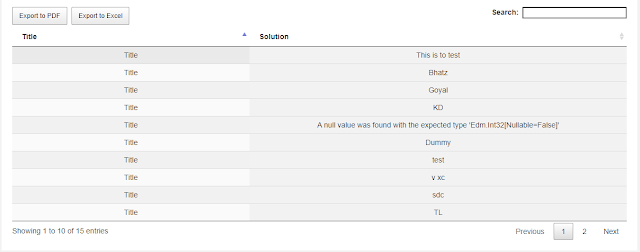
How to clear DataTable on button click In this post we will learn how we can clear a datatable on a jQuery event. By click on "btnReset" we have to call datatable's destroy method to completely clear a datatable. We may need to clear a datatable on an event. Please follow the below code to achieve the same. HTML - <table id="tblResourcesData" class="display" width="100%" cellspacing="0">           <thead>               <tr>                   <th>Title</th>                   <th>Region</th>                 <th>Country</th>                <th>Email</th>             </tr>           </thead>  </table...
Get more than 5000 list items in SharePoint using Deferred Promises jQuery

Image
How to more than 5000 list items in SharePoint using Deferred Promises jQuery In the below post you will learn how we can get more than 5000 list items using REST api. As we know that in SharePoint, number of items we can fetch at one time which should not be more than 5000 items that default architect of SharePoint list says. But in some of  the requirements we may need to get more than 5000 list items. When we Query large list by rest "/_api/web/lists/getbytitle ('<list title>')/items" on the list which has more than 5000 items, we get following exception "Request failed. The attempted operation is prohibited because it exceeds the list view threshold enforced by the administrator". So to resolve the above error you will learn to how code to get more than 5000 records. Code -  var TotalCAPItemCount = 0; $(window).load(function() {         var ItemCount = GetItemCount('CAP');          createRestUrl(ItemCount,'CAP'); ...

Upload multiple attachments to SharePoint List Item using REST API jQuery, along with People Picker Column

Image
How to Upload multiple attachments to SharePoint List Item using REST API jQuery, along with People Picker Column In this post I will show you how we can upload multiple attachments on a SharePoint List item, I am taking a People Picker field here where you can store multiple SharePoint users along with other columns. Please refer the below code, It would be very helpful for you to implement the same in your projects. In the below code you will find how you can clear a input type file and people picker field.  JS Files need to be used -   <!-- SharePoint Specific Javascript Start -->       <!--script type="text/javascript" src="/_layouts/15/sp.runtime.js"></script-->         <script type="text/javascript" src="/_layouts/15/sp.js"></script>         <script type="text/javascript" src="/_layouts/15/1033/strings.js"></script>         <scr...

How to make Rest API call synchronous in SharePoint

Image
How to make Rest API call synchronous in SharePoint In this post, I will discuss how we can make a synchronous Rest API call in SharePoint using jQuery. Normally when we do Rest API call using AJAX calls in SharePoint, it executed asynchronously. So it is not possible to know whether the call has been made completely or not. Sometimes you might come across a requirement where you want to execute something after the call has been made complete. Here I will show some ways of make synchronous Rest API call in SharePoint - 1. Using then - getItems().then(getItemsSuccess, getItemsFail); function getItems(){ return $.ajax({ url:  _spPageContextInfo.webAbsoluteUrl + "/_api/web/lists/getByTitle('ListName')/items", type: "GET", headers: { "accept": "application/json;odata=verbose", } }); } function getItemsSuccess(data){ if(data.d.results.length > 0){   //do something here // } } function getItemsFail(err){   alert(...

How to use Deferred when done in JSOM SharePoint

Image
In this post we will see how we can use Deferred with when in JavaScript Object Model to make a synchronous call in SharePoint. As in many of the requirements we need to make asynchronous call to synchronous for easy of work. In the below example we will update multiple SharePoint list items one by one. Code -  var itemIDs = [1,2,3]; $(window).load(function() {      $("#btnSubmit").click(function(){                        $.each(itemIDs, function(index, value){                           $.when(updateListItem(value))        .done(function (data) {                   alert("All Items Updated);                    })        .fail(function (sender, args) {          ...

How to export SharePoint list data automatically using Power Automate

Image
Export SharePoint list data automatically using Power Automate In the below blog you may below steps to automate a SharePoint list export automatically using Power Automate and send the exported file via email. This can be implemented in your project which might save your time and make things easy. Please follow below steps -  1. Login to Power automate and search for Scheduled Cloud Flow. 2. Fill the schedule frequency based on your requirement. 3. Get SharePoint list items and filter them as per your requirement. 4. Create a HTML table and customize it accordingly. 5. Create a file on One Drive for Business and get the file content as shown below. 6. Send this file to the required group or person based on your requirement.  I hope by following above steps you can create a scheduler which can automate your export to excel process :) 

How to Create a flow that runs only once a week using Power Automate

Image
Create a flow that runs only once a week using Power Automate Under the recurrence we can set up the frequency of our flow, in the below flow will demonstrate how we can create a flow that runs only once a week at a specific day and time. We can customize the recurrence based on our BAU requirements.  Follow below Steps - 1. Sign in to MS Flows/Power Automate. 2. Click on "My Flows" - New Flow and choose "Scheduled Cloud Flow".    3. In the Recurrence set up the properties as below it will trigger the only once a week at the scheduled time.     

How to get Choice field values in SharePoint using REST api

Image
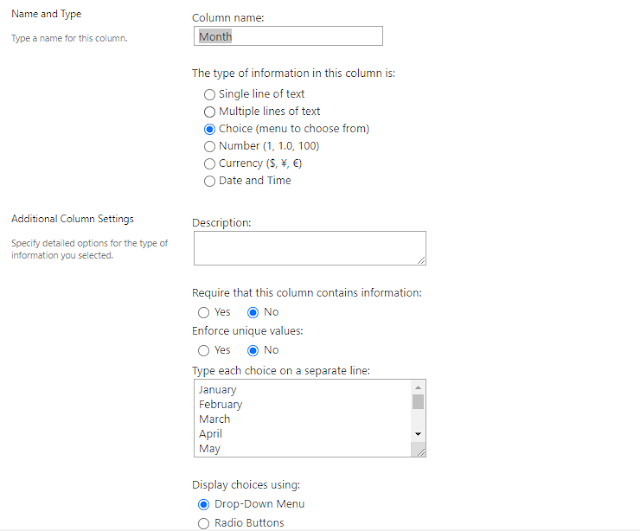
Get Choice field values in SharePoint using REST api To get values of a choice type column in SharePoint list refer the below method which will give you the all choice type column's values. Just write your list and column name in the below method and you will get your response in the console. function getChoices(){ $.ajax({         url: _spPageContextInfo.webAbsoluteUrl +"_api/web/lists/GetByTitle('List Name')/fields?$filter=EntityPropertyName eq 'Choice Field Name'",         type: "GET",         headers: {             "accept": "application/json;odata=verbose",         },         success: function (data) {             console.log(data.d.results[0].Choices.results);         },         error: function (error) {             alert(JSON.stringify(error)); ...

How to Send email reminders based on column value using Power Automate

Image
Sending email reminders based on column value in SharePoint List using Power Automate The above stated flow will trigger a reminder notification based on column value in SharePoint List. We would be using a Scheduled Cloud Flow for the same. Please refer below steps. Follow below Steps - 1. Sign in to MS Flows/Power Automate. 2. Click on "My Flows" - New Flow and choose "Scheduled Cloud Flow". 3. Create a Scheduled flow will repeat itself based on the frequency you will specify and send emails. 4. Get Items from the SharePoint List based on the column value. 5. Loop through each item and trigger send email. I believe above stated steps will help you to implement them in your BAU requirements.

How to Customize exported excel's cell background color in Datatables

Image
Customize exported excel's cell background color in Datatables In this post i will walk you through how we can customize exported excel's cell background color in datatables. For this we need make changes in the buttons.html5.js file. you may refer below links for more info.  excelHtml5  and  how can i change the background color Follow below steps and make changes in buttons.html5.js file 1. Create your own fills.  '<fills count="11">'+ '<fill>'+ '<patternFill patternType="none" />'+ '</fill>'+ '<fill>'+ // Excel appears to use this as a dotted background regardless of values but '<patternFill patternType="none" />'+ // to be valid to the schema, use a patternFill '</fill>'+ '<fill>'+ '<patternFill patternType="solid">'+ '<fgColor rgb="FFD9D9D9" /...

How to stop a Power Automate flow

Image
Stop a Power Automate Flow If you ever created a flow then you might have to either delete it as it might not in use, but here you can pause a Power Automate Flow using the below steps. You can turn off or turn on it anytime. Please follow below steps:- 1. Sign in to MS Flows. 2. Click on "My Flows". 3. Click on the flow you want to stop. 4. Click on "Turn off" button to stop the flow. I hope the above stated steps may help you :)

How to create Approval flow in Power Automate

Image
Approval flow in MS Power Automate I have create a simple flow on Power Automate if Column values equals "Approved" then trigger an email to the desired user else trigger an email to the created by or any other user. Please follow below steps:- 1. Sign in to MS Flows. 2. Click on "My Flows". 3. Select "Create From Blank +". 4. find below steps in the given screenshots.   (i) Add an action - Search for "SharePoint" in the connectors and actions.   (ii) Search for desired actions as show below. Hope this kind of simple approval flow will help you implementing in your projects or BAU.

How to generate HTML mailto links

Image
Generating HTML mailto links What is mailto link Mailto link is a type of HTML link that activates the default mail client on the computer for sending an e-mail. The web browser requires a default e-mail client software installed on his computer in order to activate the e-mail client. If you have Microsoft Outlook, for example as your default mail client, pressing a mailto link will open a new mail window.  How to create mailto link in HTML Mail to email address with cc, bcc, subject and body <a href="mailto:rajatvedi007@gmail.com?cc=vedi.rajat@gmail.com&bcc=test@testing.com &subject=The%20subject%20of%20the%20email &body=The%20body%20of%20the%20email"> Send mail with cc, bcc, subject and body</a> Important Note - How to add spaces in the mail's subject or body You can add spaces by writing %20 in the text of the subject or body. <a href="mailto:test@gmail.com?subject=The%20subject&body=This%20is%20a%20message%20body">Send mail...

How to generate PDF using jsPDF and html2canvas library

Image
Generate PDF using jsPDF and html2canvas library In this post we will implement how we can generate PDF file of a web page using jsPDF and html2canvas library. These libraries allow us to generate PDF of web pages having html including icons, images, text, css etc. Below is the complete implementation for the same. Follow below steps to perform this -  1. Include jsPDF and html2canvas libraries in your html page - <script src="https://code.jquery.com/jquery-1.12.4.js"></script> <script src="https://cdnjs.cloudflare.com/ajax/libs/jspdf/1.3.3/jspdf.min.js"></script> <script src="https://html2canvas.hertzen.com/dist/html2canvas.js"></script> <div class="canvas_div_pdf"> <!--Add HTML content you want to convert to PDF--> </div> 2. Call the below function in your JS -     function getPDF(){         var HTML_Width = $(".canvas_div_pdf").width();         var HTML_Height = $(".canvas_di...

How to export Merged column header in datatables

Image
Export Merged column header in datatables If you looking for a post where you need to export a datatable with merged column header then you are at right place. Below is the detailed example to execute this. You can implement this in your BAU requirements. Please follow below steps -  1. Add a local function to buttons.html5.js :- var _fnGetHeaders = function(dt) {     var thRows = $(dt.header()[0]).children();     var numRows = thRows.length;     var matrix = [];     // Iterate over each row of the header and add information to matrix.     for ( var rowIdx = 0;  rowIdx < numRows;  rowIdx++ ) {         var $row = $(thRows[rowIdx]);         // Iterate over actual columns specified in this row.         var $ths = $row.children("th");         for ( var colIdx = 0;  colIdx < $ths.length;  colIdx++ )         {...

How to deal with special characters in rest filters

Image
Special characters in SharePoint Rest filters You might have noticed while using SharePoint filters with special characters such as '&', '@' or '!' etc. you get error as we need to use encodeURIComponent in the rest api filtering. Below is the working example of filtering data from rest api having special character. Code -  function matchDataFromSPList(val){         $.ajax({                 url: _spPageContextInfo.webAbsoluteUrl + "/_api/web/lists/getbyTitle('ListName')/items?$filter= ColumnName eq '"+encodeURIComponent(val)+"'",                 type: "GET",                 headers: {                         "Accept": "application/json;odata=verbose"                 },                 async: false,...

How to show a progress loader in an Ajax call REST api

Image
Show a progress loader in an Ajax call SharePoint REST api  In most of our BAU requirements we need to show a progress loader in an Ajax call while data loads. There are several methods you can use, below is the code which i have implemented and you can use the same in your requirements. Code -  function bindData(url1) {          $.ajax({                 url: url1,                 method: "GET",                 dataType: 'json',                 beforeSend: function () {                     $(".loader").show();                 },                  headers:                 {             ...

How to sort a JSON Object Array

 Sorting a JSON Object Array You might have use sort() method to sort an array, but several time we might have requirement to sort a JSON object array based on a key attribute. In the below example we will learn how to sort a JSON object array. Code - function GetSortOrder(prop) {         return function(a, b) {             if (a[prop] > b[prop]) {                 return 1;             } else if (a[prop] < b[prop]) {                 return -1;             }             return 0;         }     } $.each(data, function(index, value)                         {                    ...

How to clear a data table on button click jQuery

Image
 Clearing a data table on button click jQuery In many of the scenarios we have to clear a datatable on an event as its previous data is no longer in use, to achieve this there might be many approaches. I have used below approach to clear a datatable on button click using jQuery. Code -  $("#submit").on("click", function(){     if ($('#tblData tbody tr').length > 0)                 {                         $('#tblData thead').remove();                         $('#tblData tbody').empty();                         $('#tblData').DataTable().destroy();                                         } });

How to get SharePoint list last updated details using REST

Image
SharePoint list last updated details using REST You can use the below code to get last updated date of a SharePoint list which may be used in your any BAU requirement. Code -  function lastItemModified(){    $.ajax({     url: url: _spPageContextInfo.webAbsoluteUrl + "/_api/Web/Lists/GetByTitle('Dummy')/Items?$select=Modified&$orderby= Modified desc",,     method: "GET",     headers: {       "Accept": "application/json; odata=verbose"     },     async: false,     success: function success(data) {               var d = data.d.results[0].Modified.substring(0, data.d.results[0].Modified.lastIndexOf("T"));           var year = d.split("-")[0];           var month = d.split("-")[1];               var day = d.split("-")[2];         ...